
WhatsApp GUIDE
Everything you need to know about DIGI5Y set up to grow faster, smarter, and without the chaos.
As an account user. Once you had logged in and verified your account. You will receive Digi5y online tutorial invitation.
It is highly recommended that you take some time to watch and review the admin tutorials before setup.
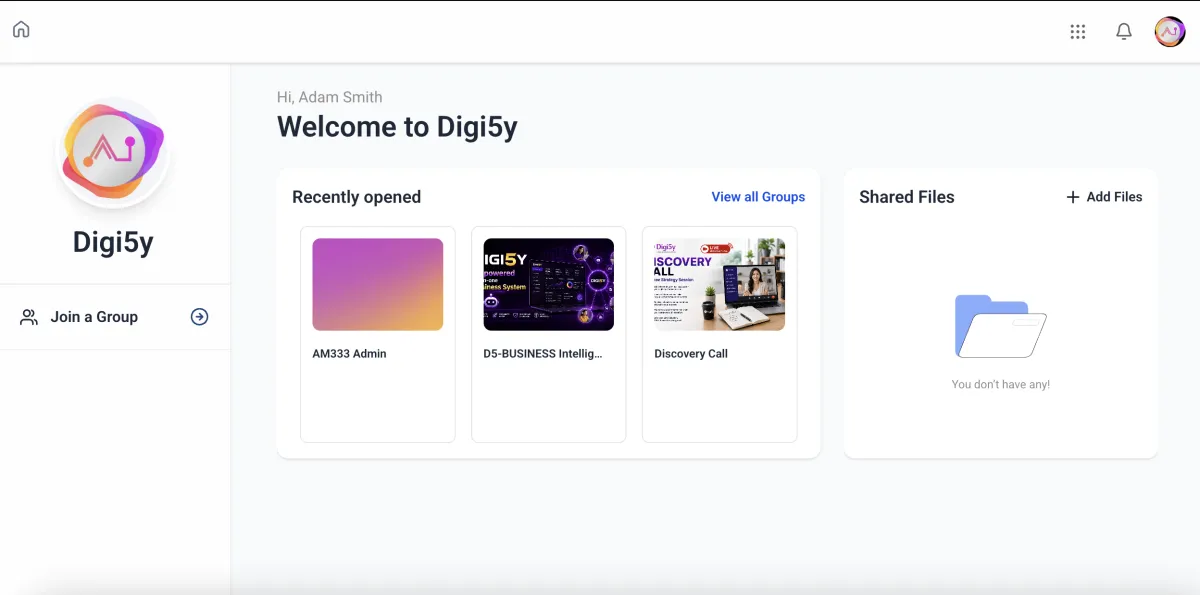
Log in to the DIGI5Y Community to access your admin tutorials.
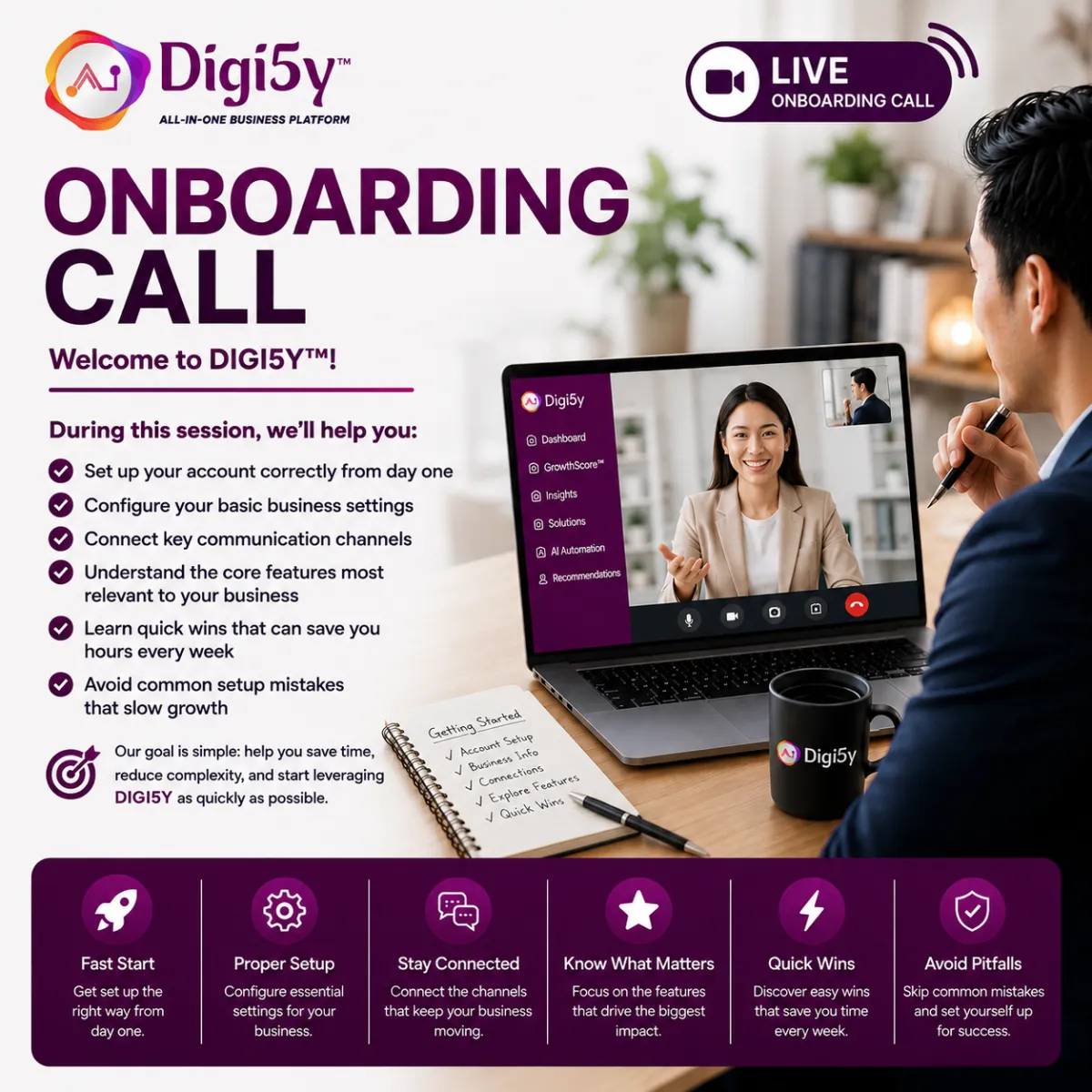
Haven't Set Up Your Account Yet? Start Here

Discover Where You're Losing Leads - For Free
WhatsApp Business API - Complete Setup Guide
A complete, step-by-step client guide to connecting WhatsApp to your DIGI5Y CRM
This guide walks you through everything needed to connect your business WhatsApp number to DIGI5Y - from setting up your Meta Business Account to sending your first automated message. Follow the sections for the smoothest setup.
1. What Is the WhatsApp Business API?
The WhatsApp Business API (officially the WhatsApp Business Platform, powered by Meta's Cloud API) is different from the regular WhatsApp or WhatsApp Business mobile app. It allows a CRM system like DIGI5Y to send, receive, and automate WhatsApp messages directly — with messages appearing in the same inbox as your SMS, email, and calls, tied to each contact's record.
● Unified Inbox — WhatsApp conversations appear inside your DIGI5Y Conversations inbox, alongside SMS, email, and calls.
● Auto Contact Sync — Contact records update automatically when someone messages you on WhatsApp.
● Automation Ready — You can trigger automations, reminders, and follow-ups based on WhatsApp replies.
● Massive Reach — WhatsApp is used in 180+ countries with over 2 billion active users and roughly 98% message open rates — far higher than email.
ℹ Note: The standard WhatsApp Business App (the free mobile app) cannot be directly connected to a CRM. You need access to the official WhatsApp Business API, set up through Meta's Business Manager.
2. Prerequisites - What You Need Before Starting
Before You Begin, Make Sure You Have:
① A Meta Business Account (Business Manager) - business.facebook.com
② Admin access to that Meta Business Account
③ A dedicated phone number for WhatsApp (mobile or landline)
④ Business verification documents ready (registration certificate, utility bill, etc.)
⑤ Admin access to your DIGI5Y sub-account
🚫 Rule: Your number must NOT be currently active on the regular WhatsApp or WhatsApp Business mobile app. Meta does not allow the same number to run on both the consumer app and the Business API at the same time - unless you use the Coexistence option (explained in Section 6).
● Best practice: use a dedicated business number that has never been registered on WhatsApp before.
● If your number is already on the WhatsApp Business App and you want to keep using it as-is, choose the Coexistence path instead of a fresh number.
3. Step-by-Step: Set Up Your Meta Business Account
Do this first - the WhatsApp Business API is managed and verified entirely through Meta, so this account is the foundation everything else connects to.
Step 1: Go to Meta Business Manager-Visit business.facebook.com and log in using the Facebook profile that will own your WhatsApp business assets.
Step 2: Create Your Business Account-Click "Create Account", then enter your business name, your name, and your business email address. Follow the on-screen prompts to finish.
Step 3: Open Business Settings-Once created, go to Business Settings-this is where all assets (WhatsApp accounts, phone numbers, templates) will be managed.
Step 4: Create a WhatsApp Business Account (WABA)-In Business Settings, go to Accounts → WhatsApp Accounts → click Add → "Create a new WhatsApp Business Account". Give it a name matching your business.
Step 5: Add Your Phone Number-Still under WhatsApp Accounts, select the account you just created, then click "Add Phone Number" and enter the dedicated number you'll use for WhatsApp messaging.
Business Verification (Recommended Before Going Live)
Step 1: Open Security Centre. In Business Settings, go to Security Centre.
Step 2: Start Verification-Click "Start Verification" and upload the requested business documents (e.g. registration certificate, utility bill).
Step 3: Wait for Approval-Meta's verification can take from a few hours up to a few days. Unverified accounts often hit approval walls later, so it's best to complete this early.
4. Step-by-Step: Connect WhatsApp Inside DIGI5Y
How to Connect WhatsApp to DIGI5Y
① Log into your DIGI5Y account.
② Go to Settings → Phone Numbers → WhatsApp (or Settings → WhatsApp).
③ Click "Connect", "Add Integration", or "Get Started".
④ Complete the Meta Embedded Signup pop-up (do not close it).
⑤ Choose your Business Portfolio, phone number, and verify.
Step 1: Open WhatsApp Settings. In your DIGI5Y sub-account, click Settings in the bottom-left menu, then navigate to Phone Numbers → WhatsApp (labelling may vary slightly depending on your account version).
Step 2: Click Connect- click the "Connect", "Add WhatsApp Number", or "Get Started" button. This launches the official Meta Embedded Signup pop-up window-keep this window open until setup is complete.
Step 3: Log In with Facebook-Log into the Facebook account tied to your Meta Business Manager, then select your Business Portfolio (the Meta Business Account you created in Section 3).
Step 4: Choose Your WhatsApp Provider-Select DIGI5Y's native WhatsApp integration as your provider (sometimes shown as "LC-Phone" or similar branding).
Step 5: Enter Number & Verify-Enter your dedicated phone number, then verify it via SMS or a voice call code sent to that number.
Step 6: Choose Your Display Name-Pick a professional display name-this is what your contacts will see when you message them. Meta reviews this name, so keep it on-brand and policy-compliant (no promotional language, matches your real business).
Step 7: Save & Confirm-Once verified, close the signup window and confirm the number now shows as "Connected" inside DIGI5Y's WhatsApp settings.
After Connecting: Enable Two-Way Messaging
Once your number is connected, go back to DIGI5Y's WhatsApp settings and toggle (ON) two-way messaging. This allows your contacts to reply to you, with those replies appearing directly in your Conversations inbox.
⚠ Important: Make sure your Meta Business Account is fully verified (Section 3) before this step-unverified accounts frequently hit approval walls during signup.
5. Setting Up Message Templates
WhatsApp only allows free-form messaging within a 24-hour window after a customer last messaged you. To send messages outside that window (reminders, promotions, follow-ups), you need a pre-approved Message Template.
Step 1: Go to Templates. Inside your WhatsApp settings in DIGI5Y, find the Message Templates section.
Step 2: Create a Template-Write your message, using placeholders (e.g. ) for personalisation where needed.
Step 3: Submit for Approval-Submit the template; it's sent to Meta for review.
Step 4: Wait for Approval-Most templates are approved within 24–48 hours. Complex marketing templates may take longer or require revisions.
ℹ Note: Templates are approved per language. If you message contacts in multiple languages, submit a separate approved template for each language you plan to use.
6. Optional: WhatsApp Coexistence
Coexistence lets you keep using the regular WhatsApp Business App on your phone for day-to-day chatting, while also managing those same conversations inside DIGI5Y-using the same number.
● Keep Your Existing Workflow-Continue using the WhatsApp Business App on your phone as normal.
● Chat History Sync-Bring up to 6 months of existing WhatsApp chat history into DIGI5Y when enabling Coexistence.
● Nothing Is Lost-Your phone number, display name, quality rating, and any already-approved templates are preserved.
To enable this, go to Settings → Phone Numbers, and choose the Coexistence option instead of a fresh number when starting the WhatsApp signup flow.
Note: If a domain shows "Pending" for more than 24 hours, double-check your DNS values or contact DIGI5Y Support.
7. Using WhatsApp Inside DIGI5Y
1. Conversations Inbox
All WhatsApp messages-sent and received-appear inside your DIGI5Y Conversations tab, in the same place as your SMS, email, and call logs. Each message is automatically tied to the correct contact record.
2. Automations & Workflows
Step 1: Open Workflows-Go to Automation → Workflows, then click "Create Workflow" (or edit an existing one).
Step 2: Set a Trigger-Choose a trigger such as "Customer Replied", a new lead, form submission, appointment booked, or contact created.
Step 3: Add a WhatsApp Action - Inside the workflow builder, add a WhatsApp message step, and write (or select) the message/template to send.
Step 4: Publish-Save and publish the workflow. WhatsApp messages will now send automatically whenever the trigger occurs.
3. Broadcasts
Use WhatsApp broadcasts to send updates, tips, or promotions to opted-in contacts at once-useful for retainer clients or regular announcements, without needing to message each contact individually.
8. Pricing-How WhatsApp Charges Work
The WhatsApp integration itself is included in DIGI5Y, but WhatsApp (via Meta) charges per conversation based on your country and the type of message sent.
Conversation Type
What It Covers
* Marketing - Promotions, offers, announcements sent to customers
* Utility - Order updates, appointment reminders, account notifications
* Authentication- One-time passcodes and identity verification messages
* Service (free)- Customer-initiated conversations replied to within 24 hrs-typically free
ℹ Note: Exact rates vary by country. Your DIGI5Y account team can confirm the current per-conversation pricing for your specific region.
9. Troubleshooting Common Issues
● Setup fails or gets stuck-Your Meta Business Account is likely not fully verified yet, or the phone number is already active on the regular WhatsApp/WhatsApp Business app. Complete Section 3's verification and confirm the number isn't in use elsewhere.
● Number "already registered" error-This is expected-you cannot use the same number on both the API and the consumer app unless Coexistence is enabled (Section 6).
● Can't send messages to a contact-Outbound messages can only be sent within 24 hours of the customer's last message unless you use a pre-approved Message Template. This is a WhatsApp/Meta rule, not a DIGI5Y limitation.
● Number shows "Connected" but nothing sends-Check that: (1) two-way messaging is toggled ON in DIGI5Y's WhatsApp settings, (2) your WhatsApp Business Account is fully verified, and (3) your message template is approved if messaging outside the 24-hour window.
● Display name got rejected-Meta reviews all display names for compliance-avoid promotional language, emojis, or names that don't match your registered business name.
10. Quick Reference Checklist
Full Setup-At a Glance
① Create & verify your Meta Business Account (business.facebook.com)
② Create a WhatsApp Business Account (WABA) inside it
③ Prepare a dedicated phone number (not active on the WhatsApp App)
④ In DIGI5Y: Settings → Phone Numbers → WhatsApp → Connect
⑤ Complete Meta Embedded Signup, verify number, set display name
⑥ Toggle ON two-way messaging
⑦ Submit Message Templates for Meta approval
⑧ Test with a live conversation before going fully live
🎉 You're Ready to Go Live on WhatsApp!
Once connected, WhatsApp becomes just another channel inside DIGI5Y-alongside email, SMS, and calls-ready for automation, broadcasts, and real-time conversations with your customers.
Need help at any step? Our support team is here for you.

DIGI5Y is an AI-Powered All-in-one Business System, customized to provide the sales, marketing and business development activity and automation with remote specialist support at your disposal, suitable for no-tech, low-tech, and high-tech businesses.


COMPANY
INFORMATION

© Copyright Digi5y.com 2026. All rights reserved.